Core features
Everything on this page is free, runs locally, and requires no account. For AI actions like extract, translate, and refine, see AI features.
#Inline translation previews
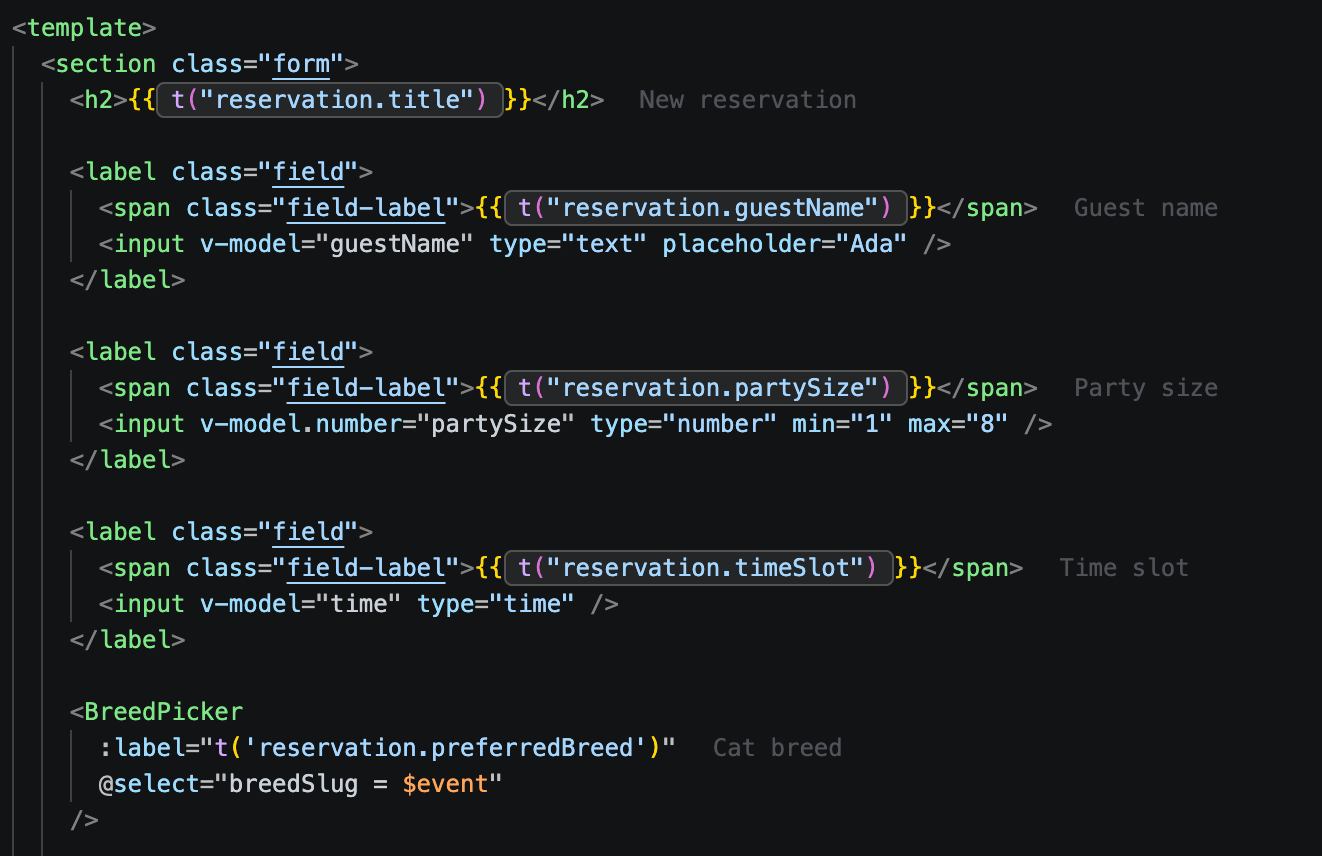
Loccy renders the resolved translation next to every keypath in your code, so you never have to open a JSON file to see what t('reservation.title') actually says.
#Customizing previews
Preview locale and color are personal preferences, a good fit for your global user settings.json (Preferences: Open User Settings (JSON) from the Command Palette). The preview defaults to your system locale, falling back to whichever of your project's locales is most widely spoken; loccy.annotation is the theme color (default #797D8699).
{
  "loccy.annotations.previewLocale": "en",
  "workbench.colorCustomizations": {
    "loccy.annotation": "#6A9955AA"
  }
}
#Hover menu
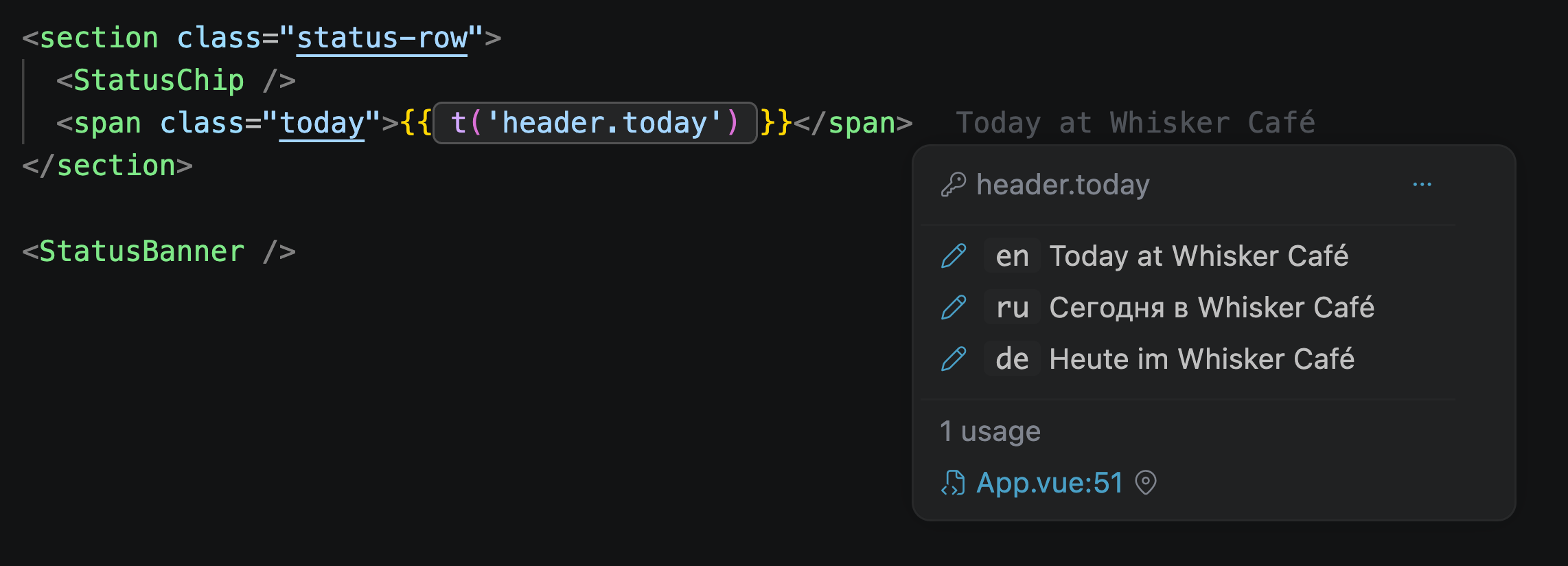
Hover over any keypath in your code to open Loccy's hover menu. It shows all translations for the message and is the entry point for most quick actions.
#Edit in place
Click the pencil button next to a translation in the hover menu to edit it directly. The change is written back to the corresponding JSON translation file without leaving your component.
To edit every locale at once, click the three-dots button and choose Edit all translations manually. All locales open together for bulk editing, written back in one operation.
#Usage map
The hover menu always displays every place in the project where the keypath is used. Use it to check whether a message is shared before changing its wording, and to jump straight to any usage.
A popular bonus use, find a place in code by text: paste a string copied from the rendered page into VS Code's search, then hover the matching value in the JSON file. Loccy shows every place it's used.
#Global keypath rename
Click the three-dots button in the hover menu and choose rename. Loccy renames the keypath everywhere, in all translation files and all code usages, in one operation.
#Insert existing message
Reuse a translation that already exists instead of creating a duplicate. Place your cursor where the keypath should go and run Loccy: Insert Existing Message... from the Command Palette, then pick the message to insert.
#Missing-translation warnings
When a keypath has at least one empty or missing translation, the inline preview shows a warning listing the affected locales.
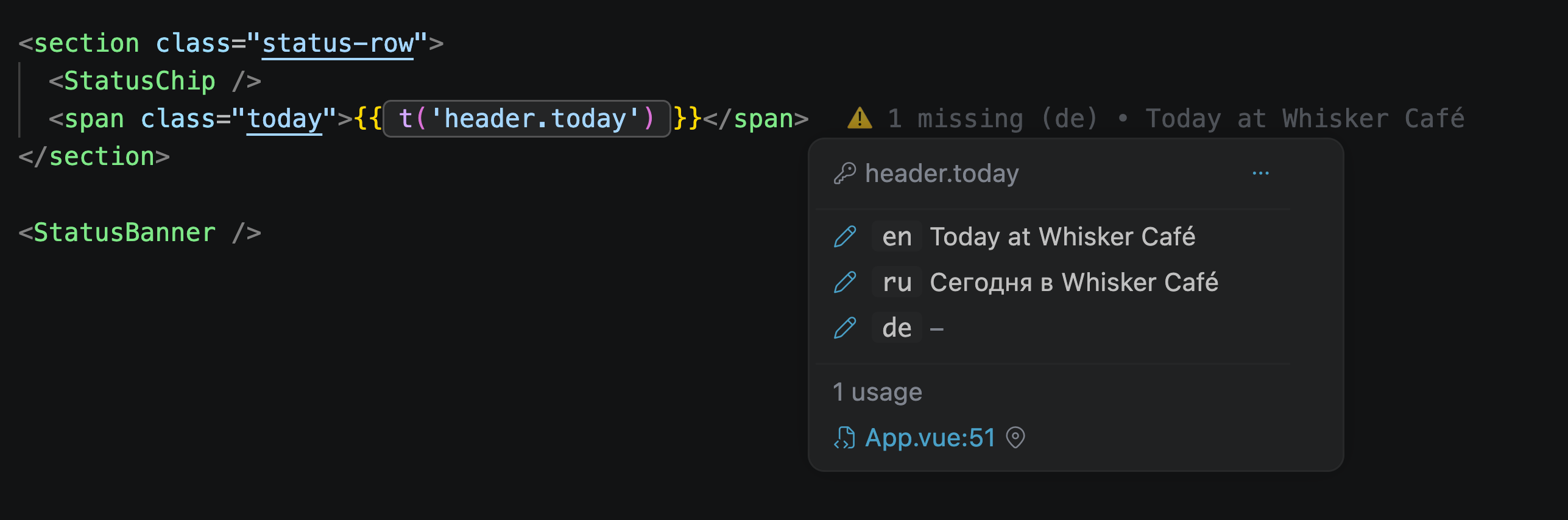
Partial-override locales are excluded: their empty keys are intentional (inherited from the base locale at runtime), not missing.
Plus, two editor settings available to control this missing-translation warnings:
| Setting | Default | Description |
|---|---|---|
loccy.annotations.showMissingTranslationsWarning | true | Show a warning in the preview when at least one translation is missing for a key |
loccy.annotations.minMissingLocalesToDisplay | 3 | Guarantees this minimum number of locales in the missing-translations list; more may be shown based on available space. Set 0 to show only the warning |